From your first colour adjustment to the final album spread. Discover the tools that bring your photography together.
10 creative toolkits
Photo editing
Colour & Lumora Looks
Bring every photograph into the same visual language, from a bridal portrait to the entire celebration.
Exposure, contrast and brightness
Highlights, shadows, whites and blacks
White balance, temperature and tint
Advanced colour and HSL adjustments
Lumora Looks and saved presets
Copy, paste and Bulk Apply Colour
Photo editing
High-end portrait retouching
A considered portrait finish: selectively refine blemishes, balance highlights and shadows with dodge and burn, and keep natural texture and facial character. Compare your result at every step.
Skin selection and selective brush
Skin texture and smoothing controls
Blemish and spot refinement
Dodge and burn for light and depth
Subtle skin-tone and colour adjustments
Before / after inspection
Photo editing
Background & masks
Make selective adjustments and refine the space around your subject.
Subject and background selection
Background removal tools
Selective masks and brush controls
Background colour adjustments
Review and refine mask edges
Photo editing
Detail & repair
Review the fine details before your photographs leave the studio.
Detail and repair workspace
Selective local adjustments
Zoom, fit and hand navigation
Before / after review
Undo, redo and reset
Workflow
Library & bulk editing
Choose your photographs, refine a representative frame and carry the settings through your selection.
Import photographs and folders
Large photo preview and ratings
Multi-photo selection
Bulk colour and retouch settings
Send selected photos to design studios
Save and reopen projects
Album & design
Auto Layout Studio
Build the story from your edited collection, then shape the pages to suit the moments.
Automatic spread arrangements
Layout ideas and style variations
Custom spread size and print margins
Editable photo frames and crops
Text, borders, shapes and backgrounds
Layered PSD export
Album & design
PSD Studio
Bring supported PSD templates into your workflow and make the design your own.
PSD template import and preview
Photo placement and replacement
Move, resize and rotate frames
Layer ordering and right-click tools
Editable text and decorating tools
Project saving and layered PSD export
Album & design
Thanks Card Studio
Personalise a card with the photographs and words that belong to the celebration.
Card templates and new card projects
Photo frames, shapes and borders
Photo replacement and crop controls
Typography, colours and decoration
Undo, redo and keyboard shortcuts
Card image and layered PSD export
Album & design
Lumora AI
Explore AI-assisted design with your Lumora account. Review each result before including it in your final delivery.
AI-assisted album design
Creative prompts and design direction
Account credit balance
Design cost shown before generation
Separate software licence and AI credits
Availability depends on an active service
Workflow
Licence & resources
Manage your Windows studio and published resources from your account.
7-day trial for an eligible account and PC
Monthly, 6-month and yearly membership
One active Windows computer
Approved paid-licence transfers
Published member templates and presets
Downloads, guides and support
AUTO RETOUCH · BULK RETOUCH
Your finish. Across your collection.
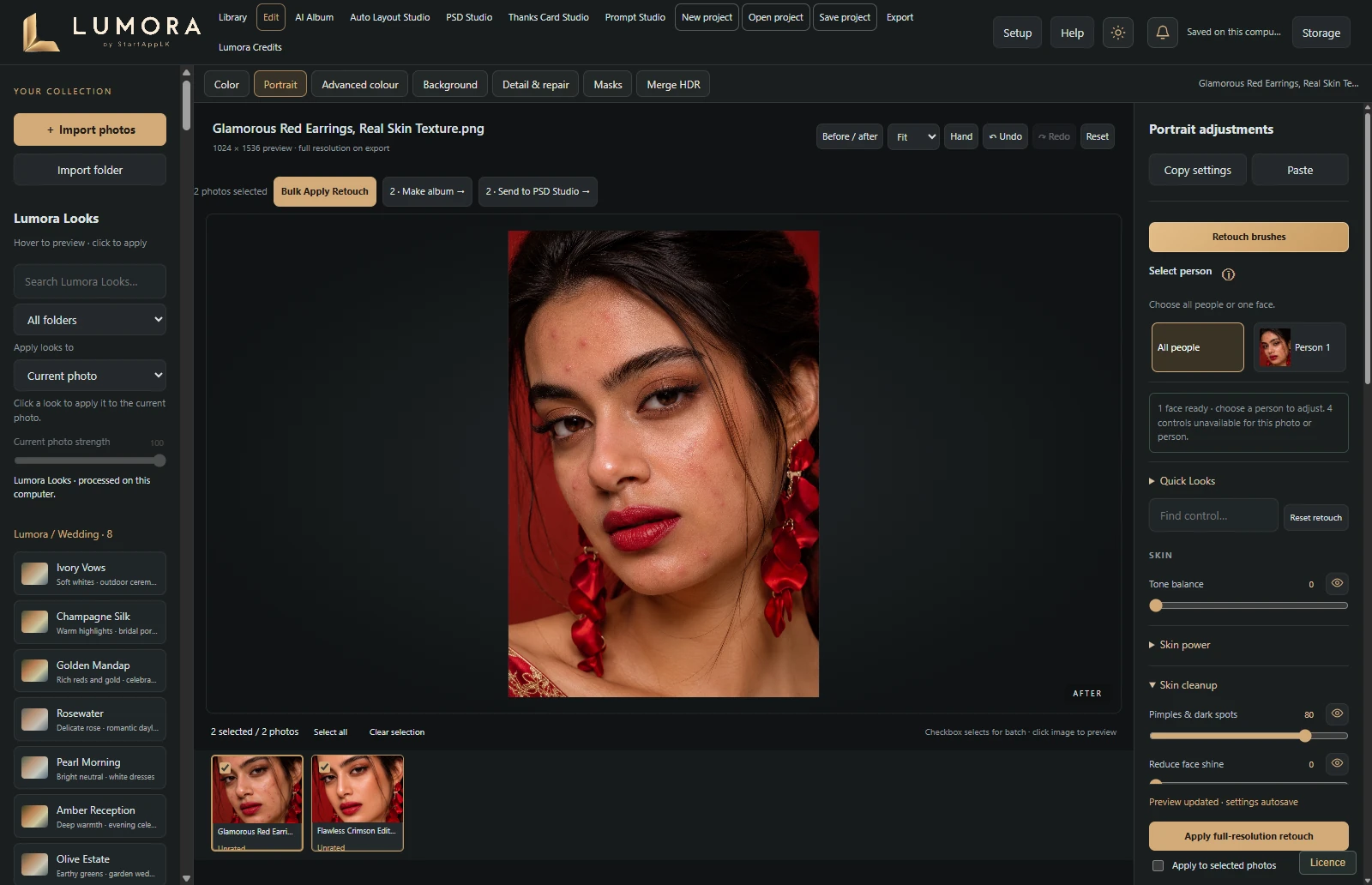
Start with a portrait. Refine its finish, carry the retouch settings to your selection and review the photographs together.
Inside Lumora · Portrait
Actual Lumora interface with the supplied demonstration photograph.
01 / FIND YOUR FINISH
Begin with a Quick Look.
Choose a portrait Quick Look, then adjust skin smoothing, blemish refinement and dodge & burn. Inspect the face and use selective controls where needed.
02 / TAKE IT THROUGH THE SET
Bulk Retouch.
Select your photographs and apply the retouch settings from your finished image. Each photograph is processed with its own face and skin selection.
03 / MAKE THE FINAL CALL
Every face gets a final look.
Compare before and after, refine individual photographs and export. Bulk Apply Colour is available separately when you only want to carry the colour settings.